Enabling Extpos
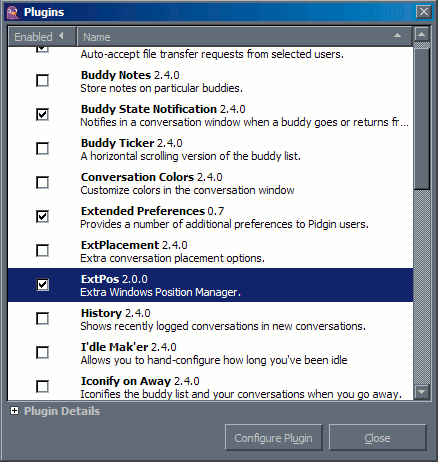
After opening your plugins manager window, check the box next to Extpos 2.0.0 (Extra Window Position Manager) to enable the usage of Extpos.
Now that the plugin is enabled you can configure its options by clicking on the Congfigure Plugin button within the plugin manager window. Opening the configuration for Extpos should open a window simmilar to the one below.
Configuring Extpos
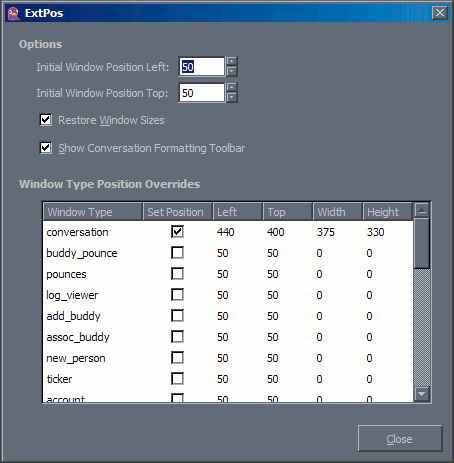
To configure the Extpos plugin, check the boxes in the Set Position column next to the appropriate window names to take control of those windows' positions and sizes on your desktop. Then click on each of the numbers to the right of that selection box and type in your desired values.
Extpos assumes that the top left corner of your desktop is (0,0), so values for Left are distance from the left side of the screen, and values for Top are distance from the top of the screen.
While size is not by default controled by Extpos, the default position for all windows except the buddy list are set using the Initial Window Position Left and Initial Window Position Top options at the top of the plugin configuration window.